TAPI Version
Required Software
- 32-bit and 64-bit versions of Xymphony TSP (XymTsp32.tsp and XymTsp64.tsp) are available within XymphonyClients.zip
Xymphony TSP Version
Required Hardware and Network
- Telesis PX24 system
- A Windows PC with static IP
- Analog telephone or Telesis digital telephone connected to a Telesis IP PBX system
- Since multicasting is used, a Local Area Network, where both Windows PC and Telesis IP PBX system are connected, is necessary.
NOTE THAT Multicasting should be available in all part of the local are network consisting of Telesis hardware and Windows PCs. Windows PCs should have their static IP addresses. These IP addresses should have been defined as Xymphony-API client IP addresses in Telesis hardware.
Required License
- No license required for Telesis systems
- Necessary number of Xymphony-API client licenses w.pxf.xmncmpn (which should be equal to the number of TAPI users) for Telesis systems.
Before Installation
- Be sure that XCom (Xymphony Companion), which is a Xymphony - API client software developed by Telesis A.S., operates successfully on the relevant PC.
- Download XCom
- Make the necessary programming on Telesis IP PBX side for XCom utility to run properly.
- After being sure, close XCom utility.
- Be aware that XCom (or any other third party Xymphony-API cient) and TAPI services should not run at the same time on the same Windows PC. However, Telesis IP PBX settings for Xymphony-API clients (like XCom) should remain the same.
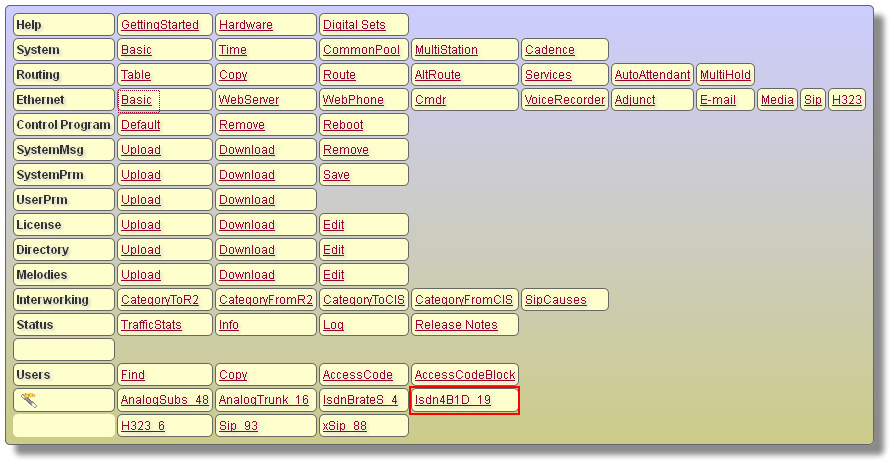
Screenshots and More About Telesis IP PBX Settings
- Select
Basic Ethernet Properties
- Check and note the
Companion signaling port which is needed in configuration of XymphonyTSP to be installed in client's PC. Although it is 9875 by default, it has been set to some other value by the system administrator for any reason. Just note the port number.
- Select client's (who will be enabled for TAPI) analog or digital phone
- Click on its
Common properties
- Be sure if Windows PC's IP address of this client has been correctly edited into
Companion IP address field in common properties.
Installing Xymphony TSP on a Windows PC
- Download Xymphony TSP (either XymTsp32.tsp or XymTsp64.tsp depending on Windows version) to the Windows PC, on which TAPI services will be provided
- Copy tsp file into System32 directory of running Windows
- For Windows 64 bit, also copy the XymTsp64.tsp file to the SysWOW64 folder under the Windows folder.
Setting Xymphony TSP on a Windows PC
- Open the Control Panel on Windows
- Double-click Phone and Modem or Telephony Options depending on your Windows version
- Click the Advanced tab
- Click Add
- Choose the Xymphony TSP
- Click Add
- Xymphony TSP you chose displays in the provider list on the Phone and Modem or Telephony Options window
- Configure Xymphony TSP. The only option is the port, which should be set to XApi port of the Telesis hardware
- Click OK to complete the setup
- In case of Xymphony TSP upgrade, first remove already installed TSP in Phone and Modem or Telephony Options then write new tsp file over the old one in System32 directory of running Windows. And, repeat the steps above.
NOTE THAT Xymphony TSP configuration page displays both state of TSP as well as call progress according to ITU-T Q.931 recommendation. This configuration page may be used anytime for maintenance and administration purposes.
For testing purposes, you may use a free third party Windows TAPI Dialer.
How to Make a Call with a TAPI Client
- For a Telesis digital telephone, whenever you make a call with your TAPI client, the phone automatically switches to hands-free mode.
- For an analog telephone, first go off-hook and hear dial tone. Then, make call with your TAPI client.